We remain fully operational. Our teams are working around the clock to ensure your deliveries continue safely.

قم بتنزيل التطبيق


معلومات عنا
حقوق الطبع والنشر © 2024 Desertcart Holdings Limited
قم بتنزيل التطبيق
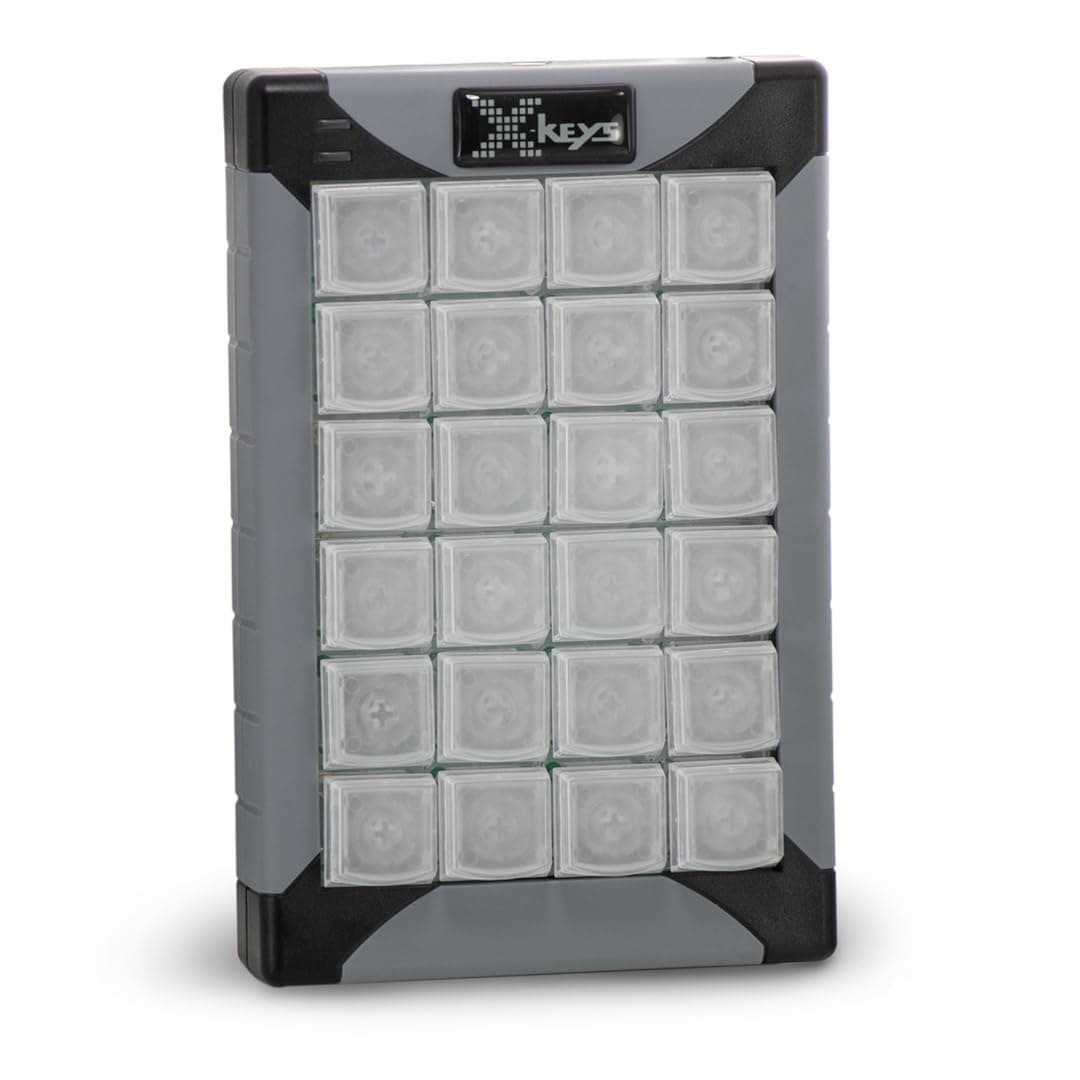
⌨️ Unlock your workflow’s secret weapon with X-keys XK-24 — where precision meets personalization!
The X-keys XK-24 is a 24-key programmable keypad featuring individually addressable blue and red backlighting, wired USB-A connectivity, and broad OS compatibility from Windows XP through Windows 11 and MacOS 10.14 to 13. Designed for professionals in trading, photo editing, court reporting, and more, it stores macros directly on the device for software-free operation after setup. Its relegendable keycaps and compact, ambidextrous design make it a versatile tool for enhancing productivity and workflow customization.



| ASIN | B003MB780E |
| Additional Features | Backlit, Hotkeys and Media Keys, Lightweight, Programmable Keys |
| Antenna Location | Business, Education, Everyday Use, Gaming, Multimedia, Personal, Photo Editing, Programming, Student, Video Editing |
| Best Sellers Rank | #662 in Computer Keyboards |
| Brand | X-keys |
| Built-In Media | USB Cable |
| Button Quantity | 24 |
| Color | Black and Grey |
| Compatible Devices | Laptop, PC |
| Connectivity Technology | USB-A |
| Customer Reviews | 4.3 4.3 out of 5 stars (370) |
| Enclosure Material | Plastic, Metal or Plastic-Metal Composite |
| External Testing Certification | FCC class B, CE, WEEE |
| Global Trade Identification Number | 00703273002404, 05050914712921 |
| Hand Orientation | Ambidextrous |
| Item Dimensions L x W x H | 3.8"L x 0.94"W x 5.8"H |
| Item Weight | 10 Ounces |
| Keyboard Backlighting Color Support | Single Color |
| Keyboard Description | Multi Functional |
| Keyboard Layout | QWERTY |
| Manufacturer | X-keys |
| Model Name | X-keys XK-24 USB Keypad |
| Model Number | XK-24 Keypad |
| Number of Keys | 24 |
| Power Source | Corded Electric |
| Style Name | Classic |
| Switch Type | Rubber Dome |
| Theme | Office |
| UPC | 703273002404 |
| Unit Count | 1.0 Count |
| Warranty Description | 1 Year Limited Warranty |
B**S
This thing is simply amazing. It Just Works
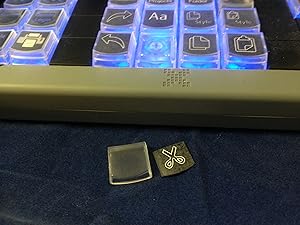
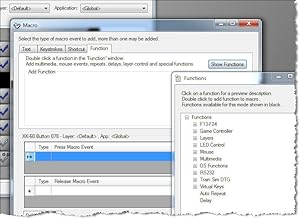
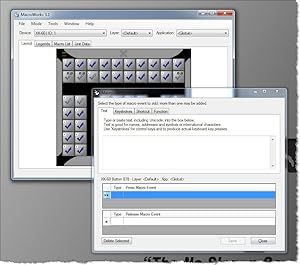
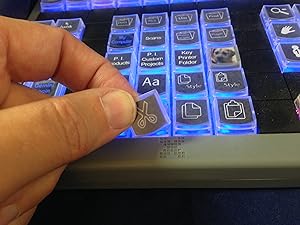
This thing is simply amazing. It Just Works. You don't even need software-resident on your computer-- you can store the keys or keystrokes directly into the device's memory, and then? Never need to re-load the software again, if you don't want to. The software is pretty easy to use; basically you're given a simple graphic of the keyboard, which you double-click each key, to change it. I would be very nice if the software was "smart" enough to blink the corresponding key, when you did that, but as I understand it, the individual key lighting isn't addressable by the main keystroke-programming software. You use a separate utility for that feature. Oh well. When I bought this, I also purchased an assortment of double-keys-- some "tall" and some "wide". These are not interchangable! Depending on how you place the keyboard, these accessories will go left-to-right, or up-and-down across two keys. So you need a pack of each, if you plan on having some double-wide keys, and some double-tall. You can also purchase blanking plates, for unused keys, which can help to highlight your layout. I found the keycaps a bit tricky at first, to remove-- it comes with a little tool (a stainless-steel "tweezer"), but I kept pulling up the whole key--not just the key-cap. With some practice, I found just where to grab with the tool, to *just* remove the thin top-part, and not the whole key. I had ordered several sheets of key-labels, for hand-written legends. I used these at first, and they were okay. However, with 80 keys, it was tiresome hand-writing all those individual legends, to say nothing of my handwriting being too large for the standard sized keys. So I used yet another utility that came with the software, and painstakingly typed in all 80 legends, one key at a time. The interface wasn't too bad-- double-click on a key, click to select one line, two lines or three lines (max). The default justification is centered, but you can left- or right- justify too. I found if you leave it on 3 lines, but click on the middle of three lines, and only use that, it's a wee bit faster, per key. What I wish it had? Was multiple selection feature-- and apply the same legend to a set of keys, then you'd just need to *edit* individual keys some-- it would be much quicker, I think, to edit a minor change or sequence, than to edit each key individually. Even better? Specify a sequence, as in a special symbol is replaced with a sequence, starting with 1, then specifying an adder (usually +1) up to as many keys as is selected in sequence. Or start with "A" and going up the alphabet in sequence. That would have saved me a couple of hours. Once I got all the keys labeled, I simply printed it--on plain paper. The labels it came with? I found rather cumbersome to use, and do *not* recommend them at all. They have mild sticky--but only to hold them to the sheet! The label itself is plain paper, one removed! And between the small size, a mild static electric charge? It was rather a pain to get the keys labeled. With plain paper, I simply cut the individual labels apart with scissors-- an entire row, then individual keys as I was installing them. Very much a pain--and impossible to keep square. Oh well--the printed labels are ever so much better than my hand-written ones anyway. What I would love to see? Is Post-It type glue on a sheet of labels-- that *would* let you keep them perfectly square. I may see if I can find this as a larger sheet, that I can put through my laser printer. I should point out, that the labels are underneath a little plastic cover--so once you have them in place? They are protected, and ought to remain for the life of the keyboard. All in all, this is an amazing product! I would buy it again, in a second. Indeed-- I have considered purchasing a second one, to use as a dedicated directional keypad--but I am worried a bit, that the software would be confused as to which unit was which. So I purchased a different product for that role (keypad) (see my review on a Razor gaming keypad). One additional nit-to-pick: if you allow their programming software to remain resident (in memory at boot-up)? The light pattern you programmed, using the little lighting utility, is messed up the minute you re-start your computer. Then, you are obliged to re-start that utility--which immediately restores your pattern. My solution was to disable their software from remaining in memory-- you don't need it, if you use the "write to device" and "hardware mode". I recommend using hardware mode anyway: many games bypass the built-in software engine that Windows uses, and talk directly to the keyboard at the hardware layer. Such games would simply ignore the resident software key programming, and the keyboard would not work-- or worse, some games would see such software as a "cheat", and disable your game ID! But using *hardware* mode, all the keystrokes are saved to the keyboard's copious memory-- and the game simply sees it as another USB keyboard. To be sure, I have not tried the keyboard's ability to simulate a mouse, so if that is a feature you need, you may need to experiment.
K**I
Excellent device
I purchased the XK-24 for use with PhotoShop, and am very pleased with the results. Setting the keys in software mode is extremely easy, and took perhaps all of 15 minutes, plus just a couple of minutes reading the instructions. I understand that the use of hardware mode is rather more involved, but i have no need for such, and imagine most people will come to the same conclusion. Printing the key legends is quite easy also, and I simply used plain white paper. The only work is cutting them from the sheet. A sheet of label blanks is included, but I decided to save them for later. To me, the only real advantage to them is that they are pre-scored. Some people seem to have difficulty installing the labels, but I think that this results from poor procedure. My approach is to pull the key cap, insert the legend label, then hold the XK-24 at an angle, such that the key faces slightly downward. When the cap is then placed on the key, the alignment is perfect every time. One can also use the tool to pull the entire key, and thus effect upside down assembly, but I see no reason to use this approach. I used the X-keys backlight Utility to set the background key colours, mixing red and blue for a nice violet/purple background. I was puzzled when the settings kept being disabled, but found one must first “disable scripted backlighting”, from the Advanced Tools dropdown. Since each can have settings for multiple applications, or for global specification, one can have multiple key sets. I primatily use two: one for PhotoShop, and one for Explorer so that I can directly invoke my 24 most used programs. The keypad itself retains only one legend, so I set up small Excel matrices containing the other mappings. About PhotoShop, I have mapped the keys using a combination of PhotoShop Actions and embedded key strokes. This has greatly simplified the edit process and saves a great deal of time eliminating repetitive operations. Much of this, of course, could be accomplished by use of PhotoShop Actions alone, however hitting the key with the right legend is far more instinctive for me than remembering a lot of different function key sequences, and much less prone to error. Having read all the other views posted here, I infer that many people simply enjoy complaining about things. This is a great device, and I wish I had purchased it long before. If I had more desktop space I would get a larger one, with more keys.
M**R
Incredible device for reducing strain
I was hesitant about buying this product for a while as I was unsure if it would do exactly what I wanted it to. I wanted to reduce the number of actions I have to take with one hand, like click and drag, and I needed it to be compatible in a variety of settings. The device supports two forms of programming: hardware and software mode. Hardware mode is where you tell the device what to do and whatever it is plugged into simply receives messages. Software mode has many more features such as keys that do different things in different apps. I chose hardware mode because I need it to be a driverless (Plain USB) device. I have mine configured to simulate a mouse with left/right clicks, double clicks, ctrl-left click, and mousse nudging. I also have been mapping all of the shortcut keys that I use onto a single XK-80 key. The device supports two layers so I programmed one layer to work on Windows and the second layer to work on the Mac. Works like a charm. I even have the lights set to match: blue for layer one or Windows, red for layer two or MacOS. Seems very well built - the keys even have little slim caps which pop off the top for a legend to go under. My main beef is that the device can only be programmed from Windows. That's annoying as my only windows machine does not allow me to install anything. So I use VMWare on my MacOS to program it. I also wish it was easier to make nice key legends. Mine look like crap but they work.
M**E
I am extremely satisfied with this product, the build quality is excellent and the programming software is flexible and easy to use. I love the design of the key with the removable key caps to allow for easy application of legends and the interchangeable keys make it easy to create custom layout. I am equally happy with the vendor, the customer service is excellent, there was a MINOR mix up with my shipment and they not only responded quickly but they exceeded my expectations in resolving my concern and making sure I was satisfied, I highly recommend Xkeys keyboards and PI Engineering, I will buy from this vendor again.
S**J
May be a little on the expensive side but is a great piece of kit. Was bought to work with lighting control software to give me quick access to programming. Very easy to set up and also after a quick look at the webpage about led backlights got it working just how I wanted. Very useful in hardware mode as it then stores the keys/macros/shortcuts in the unit so you do not have to have the software on a computer. With the software running however you do get more options like text strings etc. to set to your keys.
H**O
I've customised and used it for vMix for over 2 months now - zero complaint! The keys have good tactile feedback, easy to pull out if needed and the software make printing custom label a breeze!
C**.
Per chi ha Linux necessita l’aggiornamento del firmware fornito dal produttore, che deve essere fatto SOLO ED ESCLUSIVAMENTE con Windows... insomma “un gatto che si morde la coda”. Per il resto ottimo, soddisfa le aspettative
J**R
I had been feeling some pain in my left wrist for years at work, I decided to buy one of these, and I don't wana go back. I can't install any software at work, so this is perfect, u just program it at home with the native software , save the hotkeys to the memory and plug it in any computer, on windows or linux(I haven't tried it on macos, but I bet it works). It takes some time to get used to it, I had to start little by little using first only 4 keys for a few days, then 8, then 12 and so on... Good thing is you can write the hotkeys in the keyboard to remember it. It also took me a few times to get the layout just right to be optimal, but it is definately worth it. I wouldn't buy a bigger one, this one is big enough. I use it in Maya only(3d software).
ترست بايلوت
منذ شهر
منذ 3 أيام