Buy anything from 5,000+ international stores. One checkout price. No surprise fees. Join 2M+ shoppers on Desertcart.
Desertcart purchases this item on your behalf and handles shipping, customs, and support to EGYPT.
🚀 Elevate your workspace with wireless labeling that keeps you ahead of the curve!
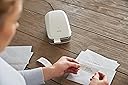
The DYMO LabelWriter Wireless Printer is a compact, 600 dpi thermal label printer featuring built-in Wi-Fi for cable-free printing from multiple devices including Macs, PCs, smartphones, and tablets. It supports network sharing, eliminating the need for ink or toner, and comes with free DYMO software and a mobile app for easy label design and printing. Ideal for professional environments seeking efficient, high-quality labeling solutions.


| Controller Type | iOS |
| Maximum Media Size | 4x6 inches |
| Included Components | AC Adapter, Printer |
| Print media | Labels |
| Max Input Sheet Capacity | 71 |
| Compatible Devices | PC, Smartphones |
| Sheet Size | 4 inches |
| Maximum Black and White Print Resolution | 600 dpi |
| Warranty Type | limited warranty |
| Dual-sided printing | No |
| Max copy resolution black-white | 600 dpi |
| Duplex | simplex |
| Ink Color | black |
| Additional Printer functions | Print Only |
| Control Method | App |
| Model Series | LabelWriter |
| UPC | 071701003904 |
| Printer Ink Type | thermal |
| Supported Media Sizes | 4 x 6 inches |
| Global Trade Identification Number | 00071701003904 |
| Manufacturer | Newell Rubbermaid Office |
| Item Weight | 2.95 pounds |
| Product Dimensions | 7 x 7.5 x 10 inches |
| Item model number | 1981698 |
| Is Discontinued By Manufacturer | No |
| Material Type | Plastic |
| Number of Items | 1 |
| Size | 1-PACK |
| Manufacturer Part Number | 1981698 |
N**H
... got it to accept my wifi - it is amazing and works great
Once I got it to accept my wifi - it is amazing and works great. I love it. I can't get the ap on my phone to work but I guess that is just how it is. I love the convenience of not have to plug it in to the computer and can just print labels like CRAZY!!!!
S**L
GARBAGE DO NOT BUY
Update: The last one stopped working. We had it stored during the pandemic, turned off for a year. When we unpacked it and started it up. it won't show up in networks (which is how it is installed. Three emails and two phone calls later this is what they offered: "I consulted my Supervisor with regard to your case and we are able to offer you one of the following options: - We could provide you with a refund which accounts to 80% Amazon price of the LabelWriter Wireless - Since LabelWriter Wireless is currently unavailable due to warehouse issues (Wireless is said to be back in stock in January 2022), we could offer you a LabelWriter 450 Turbo and two label rolls of your preference (please mind that LabelWriter needs to be connected to your computer through USB port or added as a network printer since it cannot be fully wireless as the previous model) Please let me know if you would by interested in any of these solutions by replying to this email directly." So, not the unit you bought, a lower functioning model, and the price is what you would pay for a new one. The corporate F U. Original review: After THREE different units from Dymo, I finally got one that worked. The first would not connect to wifi; the second connected but didn't print - only blank labels. The third one I got it working. HOWEVER...
A**O
Quality and Functionality
Good product! I was very excited to receive it, and now I know it will help me a lot with my shipments Thanks
G**E
Works well
Works well as I have two of them.
I**G
Good product, easy to use
Works fine overall. This printer has a setting interface like a router by accessing 192.168.58.1 which introduced by the manual. The UI is simple and easy to understand. You can set up the printer to connect local network like other WIFI printers by accessing 192.168.58.1 and works fine with google printing. You can also connect the printer to WIFI router via WPS, but I won't... USB cable included in the box for a backup if any chance WIFI not working. The reason for the 4-star is the condition of the printer I received is an open-box one, purchased new. I like open boxes but not by someone else~
L**L
Nothing but a problem
I do not recommend this product. Nothing but a problem from the start. Has issues with wireless connectivity. Setup for wireless seemed like it should be simple but it only worked after the 5th or 6th attempt. Every time I try to print wirelessly I get an error message saying it's unable to print, but then after about 30 seconds to 1 minute it spits out my label. The software freezes up (on both of my computers) while I'm typing in addresses so even that isn't nearly as easy as it should be. After years of using my old twin turbo (before it died) I thought I could tolerate having to switch out label sizes more frequently as payoff for being able to print from both my laptop and desktop without having to mess with switching a cable back and forth. Not so. I would NOT buy this product again!
P**S
It is a MINI Wi-Fi speciality printer
I have purchased one Used DYMO wireless label printer from Amazon that said Like New. Thus I have spent about 50% of its regular list price, including S. Tax. DYMO did not include any good details about wireless LabelWriter installation in its Quick Start Guide that came with the package. Whatever information is there, it would not be sufficient for people who are not much familiar with wireless (Bonjour for Mac) printer installation in a computer. I had a great deal of trouble before figuring out how to make the new DYMO wireless label printer working with my MacBook Pro v.12.10.6 computer. First of all, at the outset install the correct DYMO wireless LabelWriter software for the Mac from DYMO website. Then if necessary, turn off the DYMO printer application in Login Items window (Mac System Preferences, Users and Groups). Also, the DYMO printer application may be added as usual to the Mac's Dock menu for convenience. This stand alone DYMO printer application has to be launched every time when label(s) needs to be printed. DYMO labels cannot be printed from any other application (see below please). This is one limiting factor of DYMO label printers. Only a handful of label types can be printed using DYMO label templates. Also, the printer requires special printing rolls. It is not a plain paper laser printer! There is no option for Return Address label (Avery 5167, etc.) printing. I already have three different wireless Brother printers and one Brother MFC for use. All these have been connected to the computer via a Gateway G1100 dual-channel Modem/Router. It means I do not have to switch between Internet browsing and document printing back and forth from Mac AirPort Utility menu. Only one matter is important here- Internet connection and all printers and scanners must be added to the computer using the same frequency channel (if the router has multiple channels). The following steps eventually worked for me. Make sure the router is ON and Internet connection is working properly. If necessary, know the particular router channel that has been in use for Internet browsing. Turn the computer on. Do not turn the AirPort on yet. If the AirPort Utility is already on, just turn it off. Place the DYMO wireless label printer near or close to the wireless Modem/Router. Connect DYMO wireless LabelWriter to the power outlet and turn the printer on. The power light becomes steady after several seconds. Gently press the WPS (Wi-Fi Protected Setup) button in the back of the printer (near the power plug point). Look for slowly blinking Wi-Fi light next to the power button. Next, press once the WPS button in front of the Gateway router. WPS light will start blinking in the router. The router and DYMO label printer will attempt to connect with each other. In about a minute or two the connection will go through. If not, the router will blink red. If this happens, just wait for the steady WPS white light in the router. Reset the DYMO printer by pressing the reset button in the back gently for five seconds. Then repeat the connection steps and thus establish a steady connection between the DYMO label printer and Internet Modem/Router. Turn AirPort Utility on in Mac and look for DYMO in dropdown menu. Do not change AirPort Internet connection to DYMO Wi-Fi (never). Instead, open MAC printer / scanner preference and add the new DYMO printer to the existing printer / scanner list. If everything goes all-right, the new DYMO printer will be found in Bonjour printer list. Select the new Bonjour DYMO printer and then click add. This will complete the process. I have so far used DYMO printing application for testing the new printer. After making the DYMO label printer working wirelessly, I have placed the DYMO printer away from Gateway router in a different room near my computers and it worked just well. Perhaps, MS Word application will also work for printing single address label from the DYMO wireless label printer. I have not tested this possibility yet. Also, I have no idea about the distance range of DYMO wireless label printer. My Brother MFC is located in basement three floors down. It never failed printing and scanning. Hope my suggestions would be helpful to others. Thank you!
G**A
Quality product
I wanted a wireless labeler and I haven’t been disappointed with this DYMO labeler.
Trustpilot
3 days ago
3 weeks ago