We remain fully operational. Our teams are working around the clock to ensure your deliveries continue safely.

قم بتنزيل التطبيق


معلومات عنا
حقوق الطبع والنشر © 2024 Desertcart Holdings Limited
قم بتنزيل التطبيق
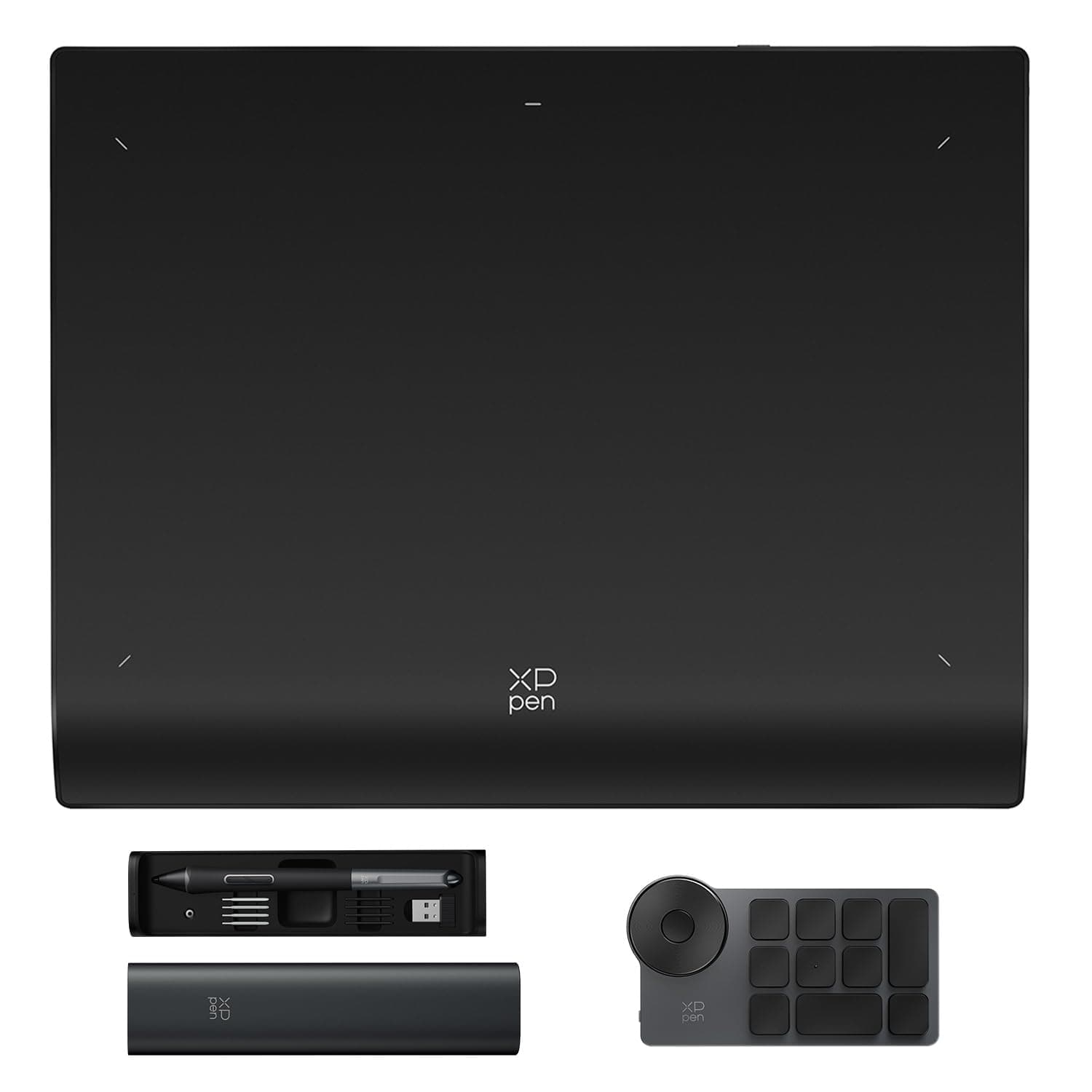
🎨 Elevate your art game—wireless, precise, unstoppable.
The XP-PEN Deco Pro LW 2nd Gen is an 11-inch wireless drawing tablet featuring Bluetooth v5.0 with dual device pairing, a battery-free X3 Pro stylus boasting 16,384 pressure levels and 60° tilt, and a customizable wireless shortcut remote. Its large A3-sized active area and metal backplate optimize comfort and performance for professional digital artists, animators, and video editors. Compatible across major OS platforms and creative software, it delivers over 10 hours of uninterrupted creative freedom.














| ASIN | B0C3R3JVBD |
| Item model number | Deco Pro LW (Gen 2)+ACK05 |
| Manufacturer | XP-PEN |
| Product Dimensions | 33.3 x 25.8 x 0.1 cm; 1.98 kg |
C**T
Out of the box: great packaging, nice pen case. Try it out: on the Mac, without driver installation the pen on the tablet moves the mouse, left click works a little, no right click, basically useless. Driver installation asks for keystroke monitoring permission (twice, denied), and asks for accessibility permission (have to accept otherwise it doesn't work). Each time the software starts it asks for more permissions (denied). Hooked up the tablet with USB-A cable. Pen on tablet works fine and is responsive and feels good, buttons on pen work. Movements are smooth and soundless. Works fine for me as a left-handed person since there are no buttons on the tablet. At times something weird happens where a menu doesn't work or selections don't turn off. Solution is to quit the driver software and restart. Don't leave the driver running if you don't use the tablet, weird menu selections will happen, the driver interferes with some mouse commands. Basically the driver can be buggy and invasive but mostly works fine while using the tablet and I don't see it working when I quit the driver app. I'm not a super user, I didn't try the extra device with buttons and I didn't try any advanced pen sensitivity trials, I didn't try to set any fancy settings. It works fine for the average user drawing and painting digitally with default settings. Overall, OK value for money. Driver software should be in the App Store so you can trust it better.
R**P
**XP-Pen Deco Pro LW Tablet Review** Before diving into the review, I think it’s important to provide some context about my background. I’m a senior 3D artist with over 25 years of experience across feature films, television, games, and virtual reality production. I’ve served as a supervisor on multiple major films, and before entering the entertainment industry, I worked as a manufacturing engineer in Silicon Valley, where I specialized in writing technical documentation and procedures. Additionally, I’ve built my last five computers from scratch, so I’d like to think I know what I’m doing when it comes to tech. **XP-Pen Purchase Date**: 2024/10/01, delivered 2024/10/02 **System Specs**: - Motherboard: ASUS Z790-E WiFi - RAM: 128GB - GPU: RTX 4090 - Total Storage: 20TB - Monitors: 2x 4K displays For most of my career, I’ve relied on tablets from "that other company" (which I won’t name because this isn’t about them). However, I’ve always felt their products were vastly overpriced. I initially had my eye on the Artist Pro 19 (Gen 2), but given the current state of the visual effects and games industries, which are facing a severe downturn, I needed to make a more cost-effective choice. Freelancing has allowed me to make ends meet, but I had to stick with essentials rather than splurging on more expensive tools—even if they might boost my productivity. That’s why I opted for the Deco Pro LW. ### REVIEW **TL;DR** For the price, I’m extremely satisfied with the XP-Pen Deco Pro LW. While I encountered a few issues, they seem more related to my workstation setup than the tablet itself. I would definitely buy this tablet again. If I had the budget, I wouldn’t hesitate to upgrade to the Artist Pro 19 (Gen 2) because the quality-to-price ratio of XP-Pen products is impressive. **Packaging** I was pleasantly surprised by the packaging quality. I expected something lightweight and basic, but the box was sturdy and well-organized, with all the contents securely protected. **SCORE**: 5/5 **Documentation (Quick Guides)** The printed materials are well-done and feel more premium than I expected. While I wish the text in the manual was larger (a personal preference), the content is clear and easy to follow. The step-by-step instructions for setup are generally good, though there are some minor grammatical issues. The biggest problem lies in the English translation during the Bluetooth setup section, which could be clearer. **SCORE**: 4.5/5 **Setup** The Bluetooth setup instructions in the manual suggest pressing the power button for 3 seconds to turn on the tablet and 6 seconds to enter pairing mode. However, I found that holding the button for 3 seconds didn’t turn it on, and holding it for 4.5–5 seconds immediately put it into pairing mode, which contradicts the manual. Initially, I couldn’t get my PC to detect the tablet via Bluetooth. After troubleshooting, I discovered that the "Allow Bluetooth devices to find this PC" setting was disabled on my system. Once enabled, the tablet paired easily. The wireless shortcut remote uses a USB dongle (not Bluetooth), but setup through the configuration app was simple. Since the Bluetooth issue was caused by a setting on my PC, I won’t deduct any points. **SCORE**: 5/5 **Use** Upon first use, I noticed some lag and lack of smoothness when using Bluetooth, particularly in Maya and ZBrush. Using the USB-C cable instead eliminated the issue, so I’ll be spending more time tweaking my system to determine if the problem lies with my hardware or the tablet. Given that this is my first day with the tablet, I plan to further investigate and resolve the Bluetooth performance. **SCORE**: 4.5/5 **Overall**: **SCORE**: 4.9/5 I’m very happy with the Deco Pro LW and excited to explore more of what it can do. Edit 11/3/2024: After using the tablet for some time I have raised the score, and moved the stars from 4 to 5 to better reflect the quality of the product. It is my hope that, in the future, I will be able to get a Artist Pro 19 (Gen 2) based on my experience with this tablet.
P**W
I really like this drawing tablet. I needed a smaller tablet as I wanted to do art sat on my sofa. I have a Wacom Intuos Pro large but it was too large to be comfortable. I wanted a cheaper tablet so took the plunge with Xp-pen and I am glad I did as this feels as good if not better than my Wacom.
J**S
First XPPEN tablet out of the three I have that was disappointing. Lifting the pen even a tiny fraction the pen would become jittery and sometimes stop being detected at all. The drawing experience was a times jittery and laggy, worse than my XPPEN Deco LW which was a third of the price. This was wired because they still, after years have not added proper bluetooth support in Ubuntu. The problem with this is that the drivers will not see the separate controller either. So both the tablet and controller need to be plugged in by usb separately, which means there's not much reason to use it over the keyboard. Waste of money really. There' are better experiences out there for half the price.
M**E
Pros. 1. Price: reasonably cheap compared to Wacom Intuos pro. 2. Very pretty design, smooth edge so it doesn't bother wrists when you use. 3. No over heating issues I found so far. 4. Pen is pretty sensitive and I like it. Now, issues I found so far. 1. It doesn't support touch controls meaning, you need to manually rotate the screen. If you have used either Wacom Pro series or display tablets such as Cintiqe or ipad, you might find it incredibly annoying. 1.1. It should support rotation function by using the wheel - however, it doesn't work. Something is wrong. 2. Poor App. Once you do any updates, it just reset all the settings you have saved. Look it up on Reddit. 3. Bluetooth - it is not really a problem but you need to change your Bluetooth setting to Advanced search otherwise it won't come up on the list. If anyone having the same issue on Windows, please go to setting and change your setting to Advanced instead of default. 4. THE REASON IM RETURNING IT.... look at the video. It occasionally just do this. It goes worse when the connection is via Bluetooth, and when I use dual monitors or sidecar between Mac and Ipad. Since this happens on both PC and Macbook I am assuming the tablet or pen has some issues. It is most likely just I'm unlucky and got a faulty device. However, not supporting touch control is bit critical for me so I don't think I can use this model. It would be great alternative option for people who don't need rotation and zoom frequently like me. At the end, it's cheap and sensitivity is as good as other Pro model graphic tablets
ترست بايلوت
منذ شهرين
منذ شهر