


🚀 Upgrade to the SSD that powers your productivity and locks down your data in style!
The Samsung 850 EVO 500GB 2.5-inch SSD leverages cutting-edge 3D V-NAND technology to deliver blazing fast read/write speeds (up to 540/520 MB/s), enhanced endurance with a 5-year warranty, and advanced AES 256-bit hardware encryption. Its Dynamic Thermal Guard ensures optimal operating temperatures, while RAPID mode and in-house component integration maximize performance and energy efficiency, making it the ultimate upgrade for professionals seeking speed, security, and reliability.
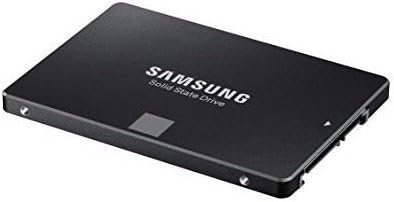


| Asin | B00P73B1E4 |
| Best Sellers Rank | 82,065 in Computers & Accessories (See Top 100 in Computers & Accessories) 377 in Internal Solid State Drives |
| Box Contents | Solid State Drive |
| Brand Name | Samsung |
| Cache Memory Installed Size | 512 |
| Color | Black |
| Compatible Devices | Desktop |
| Customer Package Type | FFP |
| Customer Reviews | 4.8 4.8 out of 5 stars (14,109) 4.8 out of 5 stars |
| Data Transfer Rate | 750 Megabytes Per Second |
| Digital Storage Capacity | 500 GB |
| Enclosure Material | Flash Memory |
| Form Factor | 2.5-inch |
| Global Trade Identification Number | 04053162537590, 04056203064819, 08806086523035, 08809321845657 |
| Hard Disk Description | Solid State Drive |
| Hard Disk Form Factor | 2.5 Inches |
| Hard Disk Interface | Serial ATA-600 |
| Hard Drive Size | 500 GB |
| Hardware Connectivity | SATA 6.0 Gb/s |
| Hardware Platform | SATA |
| Installation Type | Internal Hard Drive |
| Item Dimensions L X W X Thickness | 6.4L x 6.4W x 0.7Th centimetres |
| Item Part Number | MZ75E500BEU |
| Item Weight | 45 Grams |
| Manufacturer | Samsung |
| Manufacturer Part Number | MZ-75E500B/EU |
| Media Speed | 300 |
| Model Name | MZ-75E500B_ 850 EVO |
| Model Number | MZ-75E500B/EU |
| Network Connectivity Technology | SATA |
| Number Of Items | 1 |
| Product Features | Internal^Operating temperature range:0 - 70 °C^S.M.A.R.T support^Security algorithms:256-bit AES^TRIM support |
| Product Warranty | 12 months |
| Read Speed | 540 Megabytes Per Second |
| Specific Uses For Product | Gaming, Business, Multimedia, Personal |
| Unit Count | 1.0 count |
| Upc | 723856121971 758399113213 |
User
You'll never go back to a hard drive and you'll only ever buy Samsung again!
I've been using SSDs for years now and once you've used one you can never go back to having a hard drive as your boot drive. I paid £160 for my first SSD which was a 128GB Crucial M4 in October 2011 and since then I've used lots of other SSDs in personal and client builds from SanDisk, OCZ and Samsung mainly. I bought the M4 because at the time it was one of the fastest drives available and crucially it had one of the most stable SATA controllers, which was important at the time because a lot of drives had fairly unstable controllers and often caused a lot of problems such as blue screens of death and system crashes. A few years later and after having used SanDisk and OCZ SSDs, the Samsung SSDs had become extremely popular especially when the 840 was launched in 2013 or 2014. I bought my first Samsung SSD in July 2014 to replace the SSHD that I bought for my ThinkPad which was an 840 EVO 250GB and since then I have only bought and recommended Samsung SSDs. After that I bought an 850 Pro 256GB for a build I did in November 2014, then an 850 EVO 250GB in March 2015 to replace the 128GB OCZ Vertex 4 in my desktop and recently this 850 EVO 500GB to replace that 840 I had in there previously. I used to be very active on an online forum and I've recommended these 850 drives to hundreds of people and I've never had anybody come back and say the drive failed or that they were disappointed with it. The 850 is a truly stellar drive - well-priced, fast and easy to setup. The chances are that you'll buy one Samsung SSD and then only buy them without looking at the other brands.The speed is great. This is probably the fastest SATA SSD on the market, when used on a SATA 6GBps connection you're pretty much guaranteed to get at least 500 MB/s read and write speeds with this drive. These drives were and still are exceptionally popular with members on the forum I used to post on and most people on there were able to get between 500 and 550 MB/s read and writes with these. For comparison's sake, the Crucial M4 I bought in 2011 achieved around 400 MB/s read and write and the OCZ Vertex 4 I purchased in February 2013 when it was the fastest drive available could achieve around 450 MB/s read and write, so for those upgrading from an older SSD this is a little bit faster. Most desktop boards manufactured since 2012 will have SATA 6GBps and most laptops made since 2012 or 13 will also have SATA 6GBps, but even on the older SATA 3GBps connection you're likely to achieve around 250-300 MB/s read and writes which is reasonable.Those upgrading from hard drives will notice a huge difference. A 5400 RPM disk usually found in laptops typically reads and writes between 90 and 110 MB/s and a good 7200 RPM disk typically reads and writes between 120 and 150 MB/s. An SSD like this is the best single upgrade you can do to increase general performance of your system and it's fantastic that these days it can be done quite cheaply - certainly a lot cheaper than it was in 2011 when I first bought an SSD.If you plan to stripe two of these in a RAID-0 configuration you're likely to get around 1GB/s read and write with these drives. Several users on the forum had these in RAID-0 and got these kind of speeds. I've presently got the 250GB 840 EVO and 250GB 850 EVO in a RAID-0 stripe set in my desktop and I get something like 1GB/s read and 990 MB/s write. The 840 and 850 are so similar that you can quite happily stripe them and the two drives typically get 500 MB/s read and write speeds in single drive configurations so you won't be losing performance by doing so. The speed is of course phenomenal but for day-to-day use I can't really see the difference between one and two of these drives, but for things like writing Adobe Media Cache and copying files there is a benefit to using RAID-0 on these drives.Of course, the benefits of this SSD are the same as using any other SSD. Compared to a hard drive everything is instantaneous, everything loads faster and the speed of your OS in general just improves dramatically. You'll never go back! You actually won't be able to, the speed of an HDD will drive you mad if you go back to having an OS installed on your HDD. In a laptop it can improve the battery life too, but I didn't really notice this when I replaced the SSHD in my ThinkPad with the 840. Speaking of SSHDs, if you're thinking about an SSHD instead of a large SSD like this because it's cheaper then think again. I had a 1TB SSHD, of which only 8GB was solid state storage for operating system cache, which meant that the OS would cache files to the 8GB solid state storage so it would boot and shut down quickly. but programs were ran from what was essentially a 5400 RPM HDD and the OS ran as if it were on a 5400 RPM HDD, so the benefits of the SSHD were minimal and it died on me after only a few months, luckily by which point I had replaced it with an SSD. When I bought my 128GB Crucial M4 a 500GB drive like this was way out of most people's reach - it would probably have cost close to £1,000. Even a 256GB SSD was out of most people's price brackets, but now with a 500GB drive costing around £140 and a 250GB drive costing about half that, there's no reason to buy an SSHD really especially if you own a desktop computer and can have a large hard drive to store data on. Even if this is your only drive, 500GB is probably big enough for you. Who really has more than 500GB of data?So, you'll never go back to having a hard drive as your boot drive and you'll also only buy Samsung SSDs after you've bought one.
User
💾 Unleashing Blazing-Fast Performance: The Samsung 850 EVO SSD Review
🔥 The Samsung 850 EVO: A Game-Changing Solid-State DriveAs a tech enthusiast who's constantly on the lookout for the latest and greatest storage solutions, the Samsung 850 EVO SSD has caught my attention. After thoroughly testing and evaluating this impressive solid-state drive, I'm excited to share my in-depth review.The first thing that stood out to me about the 850 EVO is its cutting-edge 3D V-NAND technology. This innovative flash memory architecture not only boosts performance but also enhances reliability and energy efficiency, making it a true standout in the SSD market. 🧠In terms of raw performance, the 850 EVO delivers exceptional results. With sequential read and write speeds of up to 540MB/s and 520MB/s, respectively, this SSD provides a transformative experience for everyday computing tasks. The enhanced RAPID mode, which leverages unused system memory as a high-speed cache, further amplifies the drive's responsiveness, resulting in up to 2x faster performance compared to the same drive without RAPID enabled. 💨Reliability and endurance are also key strengths of the 850 EVO. Boasting double the endurance and 30% longer lifespan than the previous generation 840 EVO, this SSD is built to withstand the demands of heavy usage. The integrated hardware-based AES 256-bit encryption and dynamic thermal guard protection provide an added layer of data security and safeguard the drive's integrity.One of the most impressive aspects of the 850 EVO is its end-to-end integration solution. As the only brand that designs and manufactures all its own components in-house, Samsung has been able to optimize the drive's performance and efficiency, resulting in a truly seamless and reliable storage solution. 🏭Turning to customer feedback, the overwhelming consensus is that the Samsung 850 EVO is an exceptional SSD. Users consistently praise its blazing-fast speeds, rock-solid reliability, and excellent value proposition. The ease of installation and integration with existing systems is also frequently cited as a major selling point.In conclusion, the Samsung 850 EVO is a game-changing solid-state drive that sets a new standard for performance, reliability, and efficiency in the consumer storage market. Whether you're looking to breathe new life into an aging system or build a high-performance rig from the ground up, this SSD is a must-have upgrade that I can wholeheartedly recommend. 🌟
User
An amazing performance upgrade to my old desktop. Highly recommended.
Bought this to replace an aged and very slow Seagate 500Gb HDD in my 7 year-old desktop running Windows XP Pro. The PC is reasonably high spec with 2.7Ghz processor, high performance graphics processor, medium spec Gigabyte motherboard and maximum RAM for XP. I chose the Samsung because I understand all the manufacturing is in house, resulting in more consistent quality control and higher reliability.After installing in a spare SATA position, I ran the data migration software, and after a couple of attempts it worked perfectly. The SSD fully supported XP and all my programs, and injected an astonishing breath of new life into my PC. A 5 minute boot-up was reduced to less than 15 seconds! And all my programs burst into a instant life, whereas before I often gave up waiting!Let me explain why it took a couple of attempts. Firstly - IGNORE the supplied CD. Instead go to the Samsung website and download the latest Data Migration and Magician software - if you use the CD it will force you to update anyway, which takes much longer. Secondly - you must disable your antivirus. The Migration will almost certainly not work with it running. I realised after the second attempt - the third attempt went like a dream.After the migration was complete and I was satisfied everything worked, I then did a clean install of Windows 10. I was tempted not to - because my XP PC was now so fast!! However, I went ahead, and again everything worked perfectly. I then modified my BIOS to enable AHCI mode (you can't do this in XP, only after you've upgraded to 8.1 or 10). After this I installed Windows 10 again to maximise the speed and power saving of the SSD. Again, it installed with no problems,Finally I used the Samsung Magician software to optimise the SSD. And WOW, my sequential and random read/write rates are now over a 100 times faster than my old HDD.This is an amazing upgrade. Effectively, I have a new super-fast PC for £125, plus Windows 10 for another £90. A bargain! Why waste money on a new machine which probably still wouldn't match the performance of my new re-vitalised PC? I strongly recommend this Samsung SSD, I will certainly upgrade my 2 laptop HDD's with Samsung SSD in the near future.
User
This is the SSD to buy!
Samsung 850 EVO 500GB SSD - I have bought two Samsung 850 SSDs now, the first being the 512GB PRO and the more recent being the 500GB EVO. The EVO is more or less the same as the PRO except for the slightly slower read/write speeds and my PRO came with a 10 year warranty. They have proven to be uber fast and extremely reliable and I rate these highly.One reason for choosing these was the 3D V-NAND technology which has been a game changer for solid state memory, as they will not fail if memory cells become defective, it simply bypasses the dud cell and carries on working. I have had a HDD fail which lost me a years worth of work (which was not retrievable at all) due to the platter being internally damaged.SSDs have a huge lifespan for being rewritten (I forget the amount of data) but the most pleasing thing about SSDs is their performance. If you want to boot your system fast then there is no better way to speed up your desktop or laptop (or workstation). This is THE most cost effective component that you can buy to speed up your machine. Unlike the typical HDD which contains a spinning platter with mechanical pickup to retrieve data, an SSD has no moving parts and therefore quicker, silent and smaller in size so will fit into almost any computer device. They also consume less power and with the Magician software, they can be tuned to be either maximum performance or maximum reliability.The icing on the cake is that these can be installed by the most novice of DIYers, usually you only need a Phillips screwdriver to gain access to your machine insides and swap over the devices. Cloning your old drive to the SSD is a doddle, takes a while depending upon your original memory usage but this is so easy to do. If you are still not sure, check out some YouTube videos about installing an SSD and you'll see that it is quite straightforward. The bonus, keep your original mechanical HDD as extra internal storage (inside your PC case) as most systems will have space inside for multiple drives whilst already having surplus cable plugs to power the drives. You may need an additional SATA data cable but these are cheap too.So the nutshell, SSD is the new direction for memory, and prices have fallen so they are now not expensive for the size of memory - my 500GB EVO was around £100 at the time of writing this whereas 18 months ago the 512GB PRO was £290 (which is now £170 ish).
User
Incredible performance for a genuinely great price
I wreck hard drives. I fill them up with junk I don't use, games that I don't play too often, and generally stuff that inevitably makes the hard drive amazingly slow at the end of it."What does any of that have to do with this product", you may be saying to yourself.Well, allow me to answer.You see, this is a 'solid state drive', which is essentially a storage device similar to something like a USB flash drive, but larger and designed for heavier use than a USB drive, which should only see occasional use.This differs from a regular hard drive for a variety of reasons:1. An SSD has no moving parts, everything going on by way of electronic signals, whilst the hard drive uses a mechanical magnetised arm that reads and writes data to mirror-sheen platters, which is invariably slower.2. Because the SSD has no moving parts, it can read and write simultaneously, whilst the HDD has either read or write at any one time, and consequently results in slower read/write speeds than an SSD.3. Because the SSD has no moving parts, you don't need to be concerned about shocks, accidental drops or general wear and tear, since it's all stored electronically. The HDD, on the other hand, whilst great for mass storage, is heavy, and can be easily damaged by heavy shocks or even dropping it on the floor.Of course, this is a review, so I'll get to it now.The Samsung 850 Series is the latest in a line of SSDs from Samsung, split into the EVO and the PRO forks.As the name implies, the PRO SSDs are designed for heavier use than what the EVO SSDs are, but even for productivity, the EVO drives stack up amazingly well, with the use of a few really innovative technologies.Firstly is the use of V-NAND. V-NAND is Samsung's proprietary own NAND Flash method, which involves stacking NAND cells in small layers one atop another, to create a high density storage module. This not only allows for the use of space in the storage device, but it also allows for much larger capacities, more reliability with a greater lifespan, and reduced power consumption.This is what makes 2TB SSDs possible, because otherwise, there would not be enough space on the circuitry for NAND chips to be placed. Because this is possible, though, we are now in the moment when SSDs are truly affordable in higher capacities.The version I have is the 500GB version. but most of the 850 EVO lineup is similar to one another.Sequential read and write speeds sit at around 540MB/s and 520MB/s respectively, which in SSD terms is REALLY REALLY FAST. The 850 lineup is one of the best performing SSD lineups out there, and this shows it. Whilst the PRO lineup is a little faster, the difference isn't massive, though it's not really the intention of the 850 PRO line.Having used it for a while, I do not regret the £135 I spent on it whatsoever. It has been the best decision I made for my computer, because it allows me to install Windows, all the programs that I use on a regular basis, and even be able to store a good few games on it without a single problem.It performs amazingly fast, with a significantly reduced boot time to a few seconds from upwards of a minute, and whilst I can't comment on its longevity, I have no worries that this drive will last me a good few years, for one good reason: IT HAS A FIVE YEAR WARRANTY.Perfect.Despite this review not being one regarding longevity, the fact this has such a good warranty and is incredibly fast is already brilliant. This gets the full five stars from me, simply because as SSDs go, this is among the best available.
User
A worthwhile performance improvement.
I have a HP pavilion 2230 laptop which I bought in 2009 which I am generally pleased with and didn't want to buy a new machine for Windows 10.The machine came with 2X2GB of Ram(4GB) so all slots used up and a 320 GB hard drive. Windows 7 was pre installed. The main niggle I had with the machine was the time it took to load up from start and the loading of programmes. Another issue was that in hot weather it overheated. I therefore opted for a hard drive upgrade to try and speed up the machine prior to conversion to windows 10.The hard drive in the pavilion is accessed by the removal of a panel on the underside of the laptop that is held by 3 screws on the left hand side of the panel The two screws on the right hand side are slightly recessed and do not hold this panel. Removal of the panel needs a little bit of force from the left hand side which then allows the tags on the right hand side to be rotated out to remove the panel.The original hard drive is 9mm in depth and the Samsung EVO drive is 7mm. This is not an issue as the caddy holding the drive will align the edge connector into the correct position when the drive is secured into it. Prior to the removal of the original drive in its caddy from the laptop requires the removal of two rubber bungs which provide anti-shake protection. Mark the position of these bungs on the caddy as their location is important to allow the rear panel to be refitted.The drive comes with a disk that contain software to allow the cloning of the current disk on the laptop onto the EVO drive prior to fitting. The software provided on this disk may not be the latest so ignore it and go to the Samsung site and download the latest versions. The software gives options regarding which drives to clone. The easiest was is to clone the hard disk as is but you may not want the win 7recovery partition if upgrading . To clone your current hard disk you will need an external disk caddy which allow the EVO drive to be connected to a USB or a eSATA port. This equipment is not provided with the drive so must be bought separately. Cloning time is dependent on the amount of data you have (3 hours + on USB in my case). Following cloning the disk is ready for fitting into the laptop. When fitted the disk booted up successfully and ran windows 7 successfully. The problem occurred when I tried to upgrade to windows 10. Windows software produces an additional small partition for its internal use. When the software was cloned it cloned the small partition but did not name it correctly. To correct this you need to go into Disk Management where you will see a small partition (100mb in my case) and rename it SYSTEM. This then allowed the system to be upgraded to Windows 10.The Samsung EVO has enhance the performance of the HP2230 significantly. The HP2230 internal SATA bus is only level 2 (3Gb) so the full potential of the EVO is not used. Looking at Samsungs magician software I am achieving about 45% of the maximum quoted speed for sequential read and writes and about 30 % on the random read and writes . This is still significantly faster then the response from the hard drive that was replaced. Using the windows 7 performance rating tool the hard drive performance went from 5.9 to 7.8 . Strangely the read/write performance figures were slightly higher and more consistent with Windows 7 than with Windows 10.Overall a good upgrade for the price. Upgrading the Ram to 8Gb would have cost about the same but I doubt it would have provided the same level of performance improvement. The one star is removed because of the software not cloning the disk correctly to allow for a smooth transition to windows 10. I don't know if the overheat problem has been helped but the "on battery" time seems to have improved slightly (before just under 2h now just over).
User
Well my modestly-specified Samsung laptop is nearly three years old and I like it a lot
My computer is transformed!Well my modestly-specified Samsung laptop is nearly three years old and I like it a lot, but it has always been somewhat lethargic when asked to boot-up or open a program. I used to think that the machine's i3 CPU was the reason behind the general sluggishness....not so! The guilty party was very much the 5,400rpm drive.So, after popping-in a 500g/b Samsung SSD my computer absolutely flies. No more waiting and waiting for that little blue circle to stop spinning. Before the upgrade I used to go and make a cuppa whilst it finished booting-up! Boot-up now takes 5 seconds to the password page and then a further 5 seconds to desktop. The vast majority of my programs open instantly, including iTunes..no waiting at all. My word-processing program, LibreOffice, takes the longest...6 seconds.Everything about the machine is now much, much snappier, making it much more satisfying to use. All of my documents, files, films, books, PDFs etc open instantly, even web pages load much more quickly. I also use my computer to play a virtual piano program called Galaxy Vintage D. This is fairly system-heavy and prior to the upgrade I had to endure occasional crackles, clicks and dropouts as I was playing. Not any more, the piano plays perfectly. The laptop battery now seems to last longer too but I've not checked it properly yet.So I'd say that this has been a phenomenal upgrade and I can't believe I put-up with the sluggard that is the 5400rpm drive for so long. If you're apprehensive about doing it- don't be, it really is dead easy..and dead worth it. Samsung have made it a complete doddle. The drive comes with a disc with 2 programs on it- one for the cloning procedure and one to optimise the new drive on your system post-installation. This software is excellent, very clear and very easy to use. There are more advanced features too if you want them. You'll need to acquire a USB 3.0 to 2.5 inch SATA III cable to connect the new drive to your computer in order to clone your old disk. I also needed a "PC-technician style" (very small) cross-head screwdriver to remove the HDD bay cover, your machine may be different. My PC- Samsung NP350 V5C, i3 2.4 GH/z, 6g/b memory, Windows 8.1
User
Amazing piece of kit
I've installed this into a HP Envy DV6 and it completely transformed my laptop. I'd wouldn't say the laptop was slow to start with, but now the sheer speed of booting up Windows or launching a program is astounding. I can boot the laptop from complete shutdown to ready to go in about 8 seconds, Photoshop opens up in less than four.I've heard reports from people claiming it extends the battery life on their laptops but I think it's relative. The power draw is probably the same as a standard hard drive but where you will find battery gains is through productivity as you save a lot of time in how fast programs open or how quickly files save. Battery life on the HP Envy was terrible to start with, but less waiting time makes it seem a lot more usable.I've had this installed for almost a year at the time of writing and it's still going strong. I just did a quick check of a few programs and they still open very quickly. Microsoft Word and Excel open up to their home screens in under two seconds. Photoshop still opens up in under four. The laptop is over three years old and these speeds are miles ahead of any desktop or laptop with a standard hard drive I've used recently.Disclaimer:Although I'm not an expert in computer maintenance I do know my way around PC and laptop hardware and am not afraid to do complete Windows re-installations or replace parts. This was not the easiest piece of kit to install. You really do need to know your stuff to install one of these. Some laptops will be easier to install than others. For example, the software that Samsung supplies to transfer your data over to the new drive before installation is of no use whatsoever for this HP laptop (and may be the case for other generation HPs). The Samsung software allows you to completely move two partitions from your old drive to the new one. If I look on My Computer I can see only two partitions (My C drive and a D drive called Recovery). This may seem fine - I have two partitions and I can move two. BE WARNED! If I check in Disk Management my laptop has seven partitions, with five that are not accessible from File Explorer and the laptop needs to see all of these partitions to boot up. This may be particular to HP laptops - your mileage may vary! If in doubt get someone who knows what they're doing to install it for you. I had to use a piece of third party free software to transfer the data over (EaseUS disk copy). With some manufacturers you may be able to shove the SSD straight in and install from the boot disk, but apparently HP won't play so nicely.Despite that, I'm still giving it five stars as I had one morning of messing about for months (and hopefully years!) of hassle free usage.The particular model SSD I bought did not come with a data transfer cable. I used VicTsing 5Gbps USB 3.0 to SATA 22 Pin Adapter Cable With USB Power Cable For 2.5" Hard Disk Driver and it worked first time.
User
Performances parmi les meilleures dans cette gamme
Achat du modèle 500 Go :C'est le 2ème SSD de ce type que j'installe, le premier tournant depuis plusieurs semaines sur un de mes portables en remplacement d'un HDD sans aucun problème.Destiné cette fois-ci à remplacer un SSD Transcend de 240 Go sur une tour gamer et déjà saturé (malheureusement les SSD sont encore chers donc on y va progressivement).Et bien après clonage et réinstallation, j'ai vraiment été surpris de la vitesse de ce disque par rapport au Transcend initial (qui était déjà du SSD je le rappelle), j'ai un gain de temps au démarrage Windows qui est sensible (mais pas non plus marquant heureusement)Les performances sont très proches d'une autre marque de SSD que j'avais installé sur une tour, un ScanDisk Ultra.Cela confirme bien ce que beaucoup de sites de comparaison indiquent, les deux meilleures marques aujourd'hui de SSD en terme de performances et de robustesse sont Samsung (série 850 EVO en mémoire TLC, ou 850 PRO en mémoire MLC) et ScanDisk (Ultra ou Extreme), on pourra rajouter aussi Crucial sur certains modèles.Ce modèle a été testé sur 01net avec 518Mo/s en lecture séquentielle et 501 en écriture (Classé Excellent en 7ème place, mais derrière des modèles 240Go donc classement un peu biaisé).Avec Magician, je mesure 536 et 509, ce qui est bon (mais c'est le résultat du soft de Samsung ...)A noter que pour cloner votre HDD il vous faudra connecter ce SSD en premier lieu sur un port USB en achetant un adaptateur USB/SATA (vous en trouverez facilement sur Amazon), puis utiliser un logiciel de clonage.Attention aucun accessoire n'est livré avec ce disque (pas d'adaptateur, ni dock)Avantage de Samsung : un soft de clonage est livré avec et qui est plutôt pas mal comparé à ceux que j'ai déjà utilisé (tel que EaseUs, Paragon, XxXClone, Macrium Reflect, etc..) mais uniquement compatible PC (fonctionne avec Windows 10).Il a la particularité de pouvoir cloner même si le SSD est plus petit que le HDD et adapter les partitions (ce qui n'est pas si courant car je ne connais que Paragon et EaseUs qui savent faire ça et ils sont payants).En dernier point on peut installer le soft "Samsung Magician" qui permet d'optimiser l'utilisation du disque en fonction de son usage avec des profils intégrés (capacité, performance, fiabilité). Pour être franc, je n'ai pas vu de grosses différences entre les modes ou sans rien du tout, y compris pour du gaming.Si la machine est déjà performante, on pourra s'en passer, bon, Samsung est le seul à proposer ce genre de gestion donc on ne va cracher dans la soupe, cela peut servir sur machine un peu limite.En conclusion, des performances parmi les meilleures dans cette gamme pour un prix raisonnable.Je recommanderai donc cette famille de disque tout comme je recommande aussi du ScanDisk (en Ultra ou Extreme).Pour ceux qui ont plus de moyens, la gamme 850 PRO (avec l'onglet rouge) peut être intéressante car un peu plus rapide et en mémoire MLC, mais plus chère.
User
Great product and price point (price is time dependant - ...
Met expectations. Great product and price point (price is time dependant - so at that point int time the price point was good)
User
Tutto perfetto utilissimo
Offerta davvero da non lasciarsi scappare quella di oggi che vede protagonista l'SSD Samsung 850 EVO nel taglio da ben 500GB. Si tratta di uno dei migliori drive allo stato solido presenti sul mercato e che rapporto qualità prezzo non ha praticamente competitor. Consigliato per praticamente qualunque portatile, ultrabook, PC fisso o altro Con il sistema operativo installato, con vari programmi installati, e con 4 o 5 giochi, lo spazio libero a disposizione mi rimane di circa 100/120GB. I giochi di ultima generazione tendono ad essere veramente enormi in termini di spazio di archiviazione, alcuni, occupano anche fino a 60GB se non oltre per un singolo gioco. Tra tutti gli SSD del taglio di 500GB, il Samsung 850 EVO 500GB è il più “gettonato”. Oltre ad essere un SSD veramente molto veloce, offre anche un ottimo rapporto tra qualità e prezzo. Non starò di certo a spiegarvi perché è meglio passare da un hard-disk standard ad un SSD, questo lo sappiamo tutti, l’SSD è mostruosamente più veloce, non fa rumore e ha consumi energetici molto più ridotti. Il Samsung 850 EVO 500GB è un SSD che utilizza l’interfaccia SATA III a 6GB al secondo. Un SSD estremamente veloce grazie alla sua modalità RAPID che aumenta in modo significativo la velocità di lettura e di scrittura facendo leva sulle risorse di sistema all’interno della CPU e della DRAM installata sul computer. Questa modalità deve essere abilitata tramite il software Samsung Magician. L’SSD dispone anche di una protezione termica dinamica che proteggere l’SSD dal surriscaldamento in situazioni estreme. L’AES a 256-bit e il TCG Opal sono sistemi di crittografia hardware dei dati che consente di proteggerli contro gli attacchi hacker. Anche questi sistemi di crittografia devono essere attivati nel software Samsung Magician.Questo SSD della Samsung è in grado di offrire un’altissima velocità di lettura e di scrittura senza compromettere l’affidabilità. Se volete installare questo SSD della Samsung sul vostro portatile, oltre alle prestazioni, avremo anche un miglioramento nella durata della batteria molto consistente. Il consumo energetico di questo SSD è di soli 4,7W, mentre in modalità standby arriva solo a 0,5W. Per quanto riguarda le prestazioni, testando un SSD Samsung 850 EVO 500GB con il software CrystalDiskMark otteniamo i risultati in foto.Se si decide di passare da un hard-disk ad un SSD Samsung 850 EVO, si noterà un enorme miglioramento in termini di prestazioni nell’utilizzo delle applicazioni. Il sistema operativo si caricherà in pochissimi secondi. Considerate che un hard-disk standard ha una velocità di lettura e di scrittura notevolmente più bassa. nella seconda foto un esempio facendo lo stesso test su un hard-disk standardLe prestazioni tra un hard-disk standard in confronto ad un SSD Samsung 850 EVO sono davvero notevoli, per quanto riguarda le specifiche tecniche di questo SSD dichiarate da Samsung:Modello: Samsung MZ-75E500B/EUFattore di forma: 2,5″Tecnologia: V-NANDVelocità di lettura sequenziale: 540 MB/sVelocità di scrittura sequenziale: 520 MB/sSupporto crittografia: AES a 256 BitMemoria cache: DDR3 a basso consumo da 512 MB SamsungPeso: 55 grammiAffidabilità (MTBF): 1,5 milioni di oreGaranzia: 5 anni (Del produttore)Tenendo conto dell’ottimo rapporto tra qualità e prezzo, il Samsung 850 EVO da 500GB è un ottima soluzione. Con uno spazio di archiviazione da 500GB offerti da un SSD ad altissime prestazioni di lettura e di scrittura possiamo fare un ottimo upgrade del nostro PC o del nostro notebook. Inoltre, dobbiamo anche tenere conto del suo bassissimo consumo energetico che su un portatile ne aumenta e di molto non solo le prestazioni ma anche la durata della batteria. Anche l’affidabilità e la prospettiva di vita di questo dispositivo SSD della Samsung è notevolmente più alta di un hard-disk standard. Se teniamo conto di tutti questi fattori, il prezzo di questo SSD è del tutto giustificato. Se cercate un ottimo SSD per fare un upgrade del vostro PC o del vostro portatile, il Samsung 850 EVO 500GB è davvero molto consigliato.
User
Der Hammer-Booster für ältere (und auch neuere) PC / MAC Systeme !!!
Ich schreibe hier aus der Sicht eines professionellen IT-Dienstleisters mit mittlerweile mehr als 20 Jahren Erfahrung und gefühlten 2.000 reparierten, umgerüsteten, aufgerüsteten und / oder neu installierten Systemen. Ich denke das ich einen sehr guten Überblick über die Performance verschiedener Systeme, ob Server , Notebooks, normale PC Arbeitsplätze etc. habe und weiß wo diese ihre jeweiligen Stärken / Schwächen besitzen.Eines kann man ganz klar feststellen:Wenn es in der Vergangenheit Performanceprobleme bei PC/MAC basierten Systemen gab, waren diese zu 95% auf die Festplatten zurückzuführen. Oft dann noch in Verbindung mit etwas fehlendem Arbeitsspeicher. Ich versuche diese Zusammenhänge mal hier etwas laienhaft und allgemein verständlich auszudrücken. Es ist nämlich meistens grundsätzlich völlig egal ob eine SSD mal 10 oder 50 Mbytes mehr in der Sekunde schreibt oder liest (Datentransferrate), das merkt man in der realen Nutzung des Gesamtgerätes kaum. Der Unterschied ist es, überhaupt eine SSD einem System zu benutzen. Und diesen Unterschied versuche ich mal hier mal mit einfachen Worten und Zahlenbeispielen zu erklären. Dieses Review ist sehr lang, weil Vieles erklärt wird.Wer sich die Erklärungen sparen möchte und bereits warum und wann eine SSD schneller als eine Festplatte ist, springt am besten direkt ans Ende zum Fazit.Warum wird ein PC durch eine SSD signifikant schneller ?Ein herkömmliches PC/MAC System besteht im Grunde, wenn wir hier zwecks Analyse des Datentransfers und Datenverarbeitung auf die hierfür wichtigen Teile reduzieren, aus nur 3 maßgeblichen Komponenten:1. Dem Prozessor (auch CPU genannt, das Gehirn das die Daten bearbeiten kann)2. Dem Arbeitsspeicher (auch RAM genannt, ist quasi so etwas wie eine Kreidetafel von der die CPU Daten für ihre Datenbearbeitung ablesen kann und auch Ergebnisse aus Teilberechnungen dran schreiben kann um sie kurzfristig verfügbar zu halten)3. Die Festplatte ( auch Harddisk genannt, ist ein Massenspeicher, auf dem endgültige Berechnungsergebnisse, aber auch weitere Massen-Daten wie Photos, Bilder, Programme etc. abgelegt sind, die die CPU gerade halt nicht braucht.Etwas zu den Geschwindigkeitsverhältnissen und den Abhängigkeiten dieser drei Komponenten:- Prozessoren sind schon seit Jahren sehr schnell und verfügen über ebenfalls eigene eingebaute Speicher ähnlich dem RAM, die jedoch verhältnismäßig klein dimensioniert sind und quasi ständig nachgefüttert werden müssen, damit weitergerechnet werden kann. Der in den Prozessoren integrierte Speicher ist vergleichsweise zum RAM Speicher und zum Festplatten Speicher sehr teuer in der Herstellung. Daher wurde dieser meist sehr klein gehalten, außer in extrem teuren Serverprozessoren (bspw. Intel XEON Serie). Zudem können die kleinen Speicher (Caches) in den Prozessoren keine Daten "behalten" wenn der PC ausgeschaltet wird. Sie dienen wirklich nur zur direkten Unterstützung des Prozessors und des direkten Rechenprozesses.- Arbeitsspeicher bietet von diesen drei Komponenten die zweit schnellste Speichermöglichkeit und hat sich im Laufe der letzten Jahre durchausin seiner Verarbeitungsgeschwindigkeit entwickelt. Dieser dient jedoch ebenfalls nicht zur finalen Speicherung der Daten oder zur längern Aufbewahrung von Daten, da auch der Arbeitsspeicher nach dem Ausschalten des PCs "leer" ist. Seine Hauptaufgabe ist es möglichst alle Daten die der Prozessor in den nächsten Momenten brauchen könnte vorzuhalten und im richtigen Moment an selbigen auszuliefern. Im Gegenzug werden auch Daten in den Arbeitsspeicher geladen, welche vielleicht in Kürze von anderen PC Komponenten (wie Grafikkarten oder andere Hardware) eventuell kurzfristig gebraucht werden könnten. Auch größere Teilberechnungen die der Prozessor vorgenommen hat und nicht mehr in seinen eigenen kleinen Speichern zwischenablegen kann, werden im RAM temporär platziert.- Die Festplatte, ist das einzige mechanisch arbeitende Element in dieser Dreier Konstellation und auch gleichzeitig das langsamste. Hier befinden sich magnetisch beschreibbare, rotierende Scheiben in einem Gehäuse, auf welchem die gesamten Massendaten des Computers in Form von Nullen und Einsen dauerhaft untergebracht sind. Daten auf einer Festplatte bleiben somit auch beständig erhalten, wenn der PC ausgeschaltet wird. Hier befinden sich alle Daten die der PC nicht "vergessen" darf. Das Betriebssystem, Photos, Bilder, Programme etc. etc. Auf den verhältnismäßig lahmen Festplatten speichert man deswegen die großen Datenmengen, weil es "billig" ist. Es gibt kaum eine andere Speichermöglichkeit die so viel Platz zu verhältnismäßig geringen Kosten anbietet und sich eignen würde in einem PC eingesetzt zu werden.Wie spielen also diese Komponenten nun zusammen ?Hier ein typisches Beispiel, das Laden eines Programmes unter Windows :1. Sie klicken mit ihrer Maus auf ein Programmsymbol ums selbiges zu starten.Die Verarbeitung beginnt mit dem Prozessor der ihre Klicks auswertet, weiß welches Programm Sie gestartet haben, aber selber eigentlich erst einmal nichts weiteres für Sie tun kann außer anderen Komponenten den Auftrag zu geben das entsprechende Programm zu besorgen. Dieser Aufrag landet in diesem Fall erst einmal im Arbeitsspeicher, da sich hier so einige Informationen befinden welche Teile des Windows Betriebssystems eigentlich auch noch benötigt werden um ihr gewünschtes Programm auszuführen. Wenn man Glück hat ist diese Windows Komponente aufgrund eines großen Arbeitsspeichers bereits mit geladen worden, wenn man Pech hat kommen diese Komponenten mit auf die Wunschliste zu den einzelnen Dateien des Programms die nachgeladen werden müssen. Ist die Wunschliste fertig gestellt, wird dieser quasi der Festplatte freundlich übergeben, mit der Bitte um "Anlieferung" dieser Dateien. Das können im Einzelfall schnell mal ein paar tausend Dateien sein inklusive der Windows Komponenten die da grad benötigt werden. Und da die irgendwo auf irgendwelcher der magnetischen Scheiben der Festplatte gespeichert sind, schaut die erst mal fein in ihrem eigenen Katalog nach wo das Zeug denn alles so steckt. Dann beginnen die Schreib-/Leseköpfe damit den Katalog abzuarbeiten. Da auch die gewünschten Daten meist niemals direkt "am Stück" hintereinander zu finden sind, springen die Köpfe also immer hin- und her solange bis alle Daten ausgelesen und an den Auftraggeber Arbeitsspeicher übermittelt wurden.Bis hierhin sind oft schon bereits viele Sekunden vergangen, in der Sie vor dem Rechner sitzen und sich quasi noch nichts gerührt hat.2. Sobald die notwendigen Daten sich im Arbeitsspeicher befinden, kann der Prozessor damit beginnen diese zu bearbeiten und ihr Programm auszuführen. Die Zusammenarbeit zwischen Arbeitsspeicher und CPU ist dabei verhältnismäßig gut und zügig. Ab diesem Zeitpunkt geht also alles relativ flott und sie könnten jetzt meist schon mit ihrem gestarteten Programm arbeiten. Abgesehen natürlich von den Fällen wo sie in ihrem gestarteten Programm bspw. ein Bild laden wollen, oder eine Programmfunktion aufrufen die bis dahin noch nicht mitgeladen wurde. Dann muss die ganze Kette rückwärts mit einer neuen Wunschliste für die lahme Festplatte zurück abgearbeitet werden. Das kann dauern ' gääähn . Bei älteren PC Systemen die schon viele Jahre Windows Updates 'ertragen' mussten, und deren Hardware scheinbar nicht mehr für die heutige Zeit gebaut scheint, kann das auch schon mal der Zeitpunkt sein um einen frischen Kaffee zu holen.Das was ich hier mal bildlich dargestellt habe, würde ich gerne mal mit ein paar Vergleichszahlen erläutern um die Verhältnismäßigkeit der einzelnen Komponenten untereinander, in Bezug auf Zugriffsgeschwindigkeit und Datentransfer Geschwindigkeit zu beschreiben.Wir lernen hier gerade einen neuen Begriff zusätzlich zur bisher besprochenen 'Datentransfer' (Lese-/Schreib)-Geschwindigkeit, auch Datendurchsatz genannt: ZugriffsgeschwindigkeitDie Zugriffsgeschwindigkeit gibt an, wie lange ein Speicher braucht bis er mir die ersten von mir angeforderten Daten liefern kann, nachdem ich ihm das Kommando dazu gegeben habe. Manchmal wird die Zugrifffsgeschwindigkeit auch als 'Latenz' bezeichnet. Es ist also nicht nur wichtig wie schnell ein Speichermedium die Daten rausrücken kann wenn es einmal damit begonnen hat, sondern auch wie lange es dauert bis es beginnt zu liefern. Und hier steckt die Magie einer SSD. Hier die angesprochenen Vergleichszahlen zu den drei Komponenten in Bezug auf ihre Datentransferrate und den Zugriffszeiten:Speicher die sich in der CPU befinden:1st lvl Cache:Datentransfergeschwindigkeit : 38 GByte/s Zugriffszeit : 1,2 ns2nd lvl Cache:Datentransfergeschwindigkeit : 18 GByte/s Zugriffszeit : 3,8 nsHauptspeicher (RAM):Datentransfergeschwindigkeit : 7 GByte/s Zugriffszeit : 72 nsFestplatte (HDD):Datentransfergeschwindigkeit : 90 MByte/s Zugriffszeit : 7,2 msTechnikaffine Vollprofis mögen mir verzeihen das ich mich hier an Zahlen eines Core2Duo 2,4 GHz, FSB 800, DDR2-800 Systems aus 2011 orientiert habe, welcher sicherlich nicht mehr Stand der Technik ist. Jedoch ist dieses zur Verdeutlichung des SSD Effektes völlig ausreichend und stellt die Verhältnisse immer noch sehr klar dar.Was man an den obigen Daten deutlich sehen kann, ist das die Speicher die sich in der CPU befinden (L1 und L2 Caches) sowohl vom Datentransfer als auch in der Zugriffszeit sehr schnell sind. (Die Einheit ns bei der Zugriffszeit bedeutet hier 'Nanosekunden'). Man sieht hier zwar das schon eine deutliche Diskrepanz zwischen der Geschwindigkeit des eingebauten Prozessor- Speichers (Cache) und dem Arbeitsspeicher (RAM) besteht ( Zugriffszeit 1,2ns zu 72ns, was fast den Faktor x60 bedeutet), aber es wird immerhin bei Datendurchsatz und der Zugriffsgeschwindigkeit noch mit denselben Einheiten gerechnet. (Gbyte/s = Gigabyte pro Sekunde und ns=Nanosekunden) . Eine Nanosekunde ist der ein milliardste Teil einer Sekunde, also = 0,000000001 Sekunden. Das ist fast genau die Zeit die der L1 Cache im Prozessor braucht um Daten an diesen zu liefern. Bis diese Daten aus dem Arbeitsspeicher gekommen sind dauert es immerhin schon ca. 60 mal länger (72ns). Das ist aber immer noch verdammt schnell. Und jetzt kommt das Problem : Muss ich die Daten von der Festplatte holen, muss ich mit einer Reaktionszeit selbiger von ca. 10 ms (= 10 Millisekunden) leben. Werden wir mit einer ganz anderen Einheit konfrontiert. Hier nochmal untereinander die Nanosekunde und die Millisekunde:0,000000001 (Nanosekunde)0,001 (Millisekunde)Eine Millisekunde ist also 1.000.000 (eine Million) mal langsamer als eine Nanosekunde. Vergleichen wir also mal die 72ns Zugriffsgeschwindigkeit des Arbeitsspeichers mit den 10ms der Festplatte, so erhalten wir einen Faktor von mal 138889 den der Arbeitsspeicher schneller ist im Zugriff auf die Daten als die Festplatte. Wenn Sie 10.000 kleine Dateien aus dem Arbeitsspeicher dem Prozessor zu Verfügung stellen müssten (gerechnet ohne die reine Übertragungszeit der Datenmengen selbst) würde das in Bezug auf eine Zugriffsverzögerung 10.000*0,000000072ns=0,00072 Sekunden dauern. Also immer noch ein 'Sekundenbruchteil'. Muss eine Festplatte wie im Beispiel diese Daten zusammenkratzen, braucht Sie alleine für das Zusammensuchen (ohne die Daten selber zu liefern) schon 10.000*10ms = 100 Sekunden. Das ist schon ein gewaltiger Unterschied und demonstriert die Verhältnissmäßigkeit in den Zugriffsgeschwindigkeiten zwischen Arbeitsspeicher und Festplatte. Das Laden von 10.000 verschiedenen Dateien von einer Festplatte ist übrigens gar nicht mal so weit hergeholt. Das entspricht bspw. dem typischen Arbeitsaufwand für eine Festplatte beim Laden ihres Betriebssystems, also wenn sie den PC oder MAC hochfahren.Und das was oben beschreiben ist, entspricht nur der Differenz in der Zugriffsgeschwindigkeit. Zudem kommt noch der Performanceunterschied in der eigentlichen Datentransferrate, also wieviel an Daten in einem bestimmten Zeitraum 'rübergeschaufelt' werden können. Hier ist der Unterschied zwischen Arbeitsspeicher zu Festplatte (7 Gbyte/s zu 90 Mbyte/s) auch noch gewaltig (ca. der Faktor 78) aber nichts im Vergleich zur Differenz der Zugriffszeiten.So und wer es durch das ganze technische Gewusel bis hierhin geschafft hat, erfährt jetzt warum eine SSD den meisten PCs und MACs einen Riesen Performance Vorsprung gibt:Ganz einfach. Wie wir oben herausgefunden haben ist eine Festplatte um ein unglaublich großen Faktor langsamer als das Arbeits-Verhältnis zwischen Arbeitsspeicher und Prozessorspeicher. Die Festplatte ist also der so genannte 'Bottleneck' (Flaschenhals) welcher immer dann wenn viele einzelne Dateien von ihr angefordert werden den Arbeitsspeicher und den Prozessor 'warten' lässt. Dieser Fall das 10.000 tausende kleiner Dateien geladen werden, kommt leider jedes Mal vor, alleine wenn Sie ihr Betriebssystem laden, also den PC einschalten. Deswegen dauert das ganze auch Minuten um Minuten. Je mehr Updates ihr PC mittlerweile für sein Betriebssystem bekommen hat, umso mehr verstreuen sich die Dateien auf der Festplatte und umso gewachsener ist die gesamte Anzahl einzelnen kleinen Dateien. Und das 'killt' über die Jahre fast immer die Gesamtperformance eines Rechners, selbst wenn der zum Kaufzeitpunkt ein 'Höllengerät' war.Sehr oft werden dann wegen solcher minutenlanger 'Booten des Betriebssystem' Orgien und einem sich teigig anfühlenden Gesamtverhalten des PCs unter seinem Betriebssystem ganze Rechnersysteme direkt ausgetauscht. Kann man machen. Muss man aber nicht. Sollte man auch nicht, vor allen Dingen wenn das neue PC System nicht über eine SSD verfügt. In diesen Fällen habe ich nämlich schon eindrucksvoll demonstrieren können das der alte mit einer SSD aufgerüstete Rechner bis zu 8 x schneller gebootet hat, als der brandneue Rechner, der aber wieder mit einer normalen (wenn auch schnelleren) Festplatte ausgerüstet war.Warum ist die SSD denn jetzt eigentlich schneller als jede Festplatte ?Weil Sie quasi fast so schnell ist wie ein Arbeitsspeicher (RAM) und keinerlei mechanische Verzögerung hat. D.h. sie ist sowohl im Datentransfer, als auch in der Zugriffsgeschwindigkeit dem normalen Arbeitsspeicher des PC/MAC sehr ähnlich, und kann damit tausendmal effizienter im Team und im Zusammenspiel von Arbeitsspeicher und Prozessor mitwirken. Eine SSD ist ein so genannter 'Flash' Speicher, was bedeutet das sie ihre Daten nicht wie ein normaler Arbeitsspeicher beim ausschalten des Computers 'verliert'. Somit eignet Sie sich auch erstmals zum Ersatz einer Festplatte die ihre Daten ja magnetisch (relativ) dauerhaft speichert.Ein simples Rechenbeispiel:Das weiter oben genannte PC System soll 'gebootet' werden. Das typische Windows besteht aus 2 Gigabyte an Dateien die in den Arbeitsspeicher geladen werden müssen und ca. 10.000 einzelnen Dateien.Für das obige PC System das die Daten von seiner Festplatte laden muss bedeutet dies:Für die reine Zugriffszeit zum Laden der Dateien: 10.000*10ms = 100 Sekunden.Zzgl. der Zeit zum Übertragen der Daten selbst, 2GB / 90Mbyte/s = ca. 22 Sekunden.Also in Summe ca. 122 Sekunden. Mit rund zwei Minuten ein typischer Bootvorgang.Rüsten wir das System jetzt auf eine SSD um, sieht die Rechnung ca. aus wie folgt :(Wir kalkulieren mit einer marktüblichen SSD mit Zugriffszeiten um die 0,1 ms und einer Datentransferrate von ca. 500 Mbyte/s. Der Fairheit halber (ältere PC Systeme können diese hohen Datenraten oft über ihren älteren internen BUS gar nicht abbilden, rechnen wir hier mit 30%,also mit 150 Mbyte/s )). Für die reine Zugriffszeit zum Laden der Dateien: 10.000*0,1ms = 1 Sekunde !!! Zzgl. der Zeit zum Übertragen der Daten selbst, 2GB / 150Mbyte/s = ca. 13 Sekunden. Also in Summe ca. 14 Sekunden. Das entspricht einem typischen Bootvorgang eines Betriebssystems mit SSD.Man erkennt hier deutlich das mit einer SSD das Hauptproblem, nämlich die Zugriffszeiten auf die vielen tausenden Einzeldateien durch den Einsatz einer SSD fast komplett eliminiert wurden. Wer das jetzt bis hierhin verstanden hat, weiß wo die Magie einer SSD liegt, was diese vermag zu leisten, und das es eigentlich fast schnuppe ist, welche Datentransferrate eine SSD letztendlich bietet. Für eine höhere Datentransferrate einer SSD viel Geld auszugeben lohnt sich maximal für ganz neue, hoch performante PCs / MACs mit den entsprechenden Bus Systemen, die diese Daten auch weitertransportieren können.FAZIT:Für ältere PCs sind die SAMSUNG Festplatten mit ihren in Relation zur Konkurrenz gesehenen, mittleren Datentransferraten und ihrem günstigen Preis völlig ausreichend. Zudem verfügen die Samsung SSD standardmäßig über eine mitgelieferte Software, mit deren Hilfe man das Originalbetriebssystem meist bequem von der alten Festplatte auf die SSD übertragen kann. Zudem sind SSDs durch die nicht vorhandene Mechanik im Gegensatz zu Festplatten völlig resistent gegen Schocks (gerade wichtig für den Notebookbetrieb unterwegs) und verbrauchen aus dem selben Grunde auch deutlich weniger Strom.Es gibt viele gute SSDs auf dem Markt von verschiedensten Herstellern, aber in Bezug auf Qualität, Performance, Lieferumfang und Preis-/Leistungsverhältnis kann ich aus vielen Jahren Erfahrung die SAMSUNG SSDs nur empfehlen. Ich habe insgesamt mittlerweile ca. 70-80 SSDs (meist SAMSUNG SSDs aus der EVO Serie) verbaut und hatte mit den SAMSUNGSs niemals Probleme oder Ausfälle.Ich hoffe das ich mit diesem etwas ausschweifenden Review einigen Leuten nahe bringen konnte was überhaupt genau der Vorteil einer SSD ist und wie dieser zu quantifizieren ist. Wenn euch dieses Review in seiner ausführlicheren Form Gefalle hat, klickt bitte unten auf'War diese Rezension hilfreich ?' '> JA
User
qualitée
extra
Trustpilot
3 days ago
3 weeks ago